
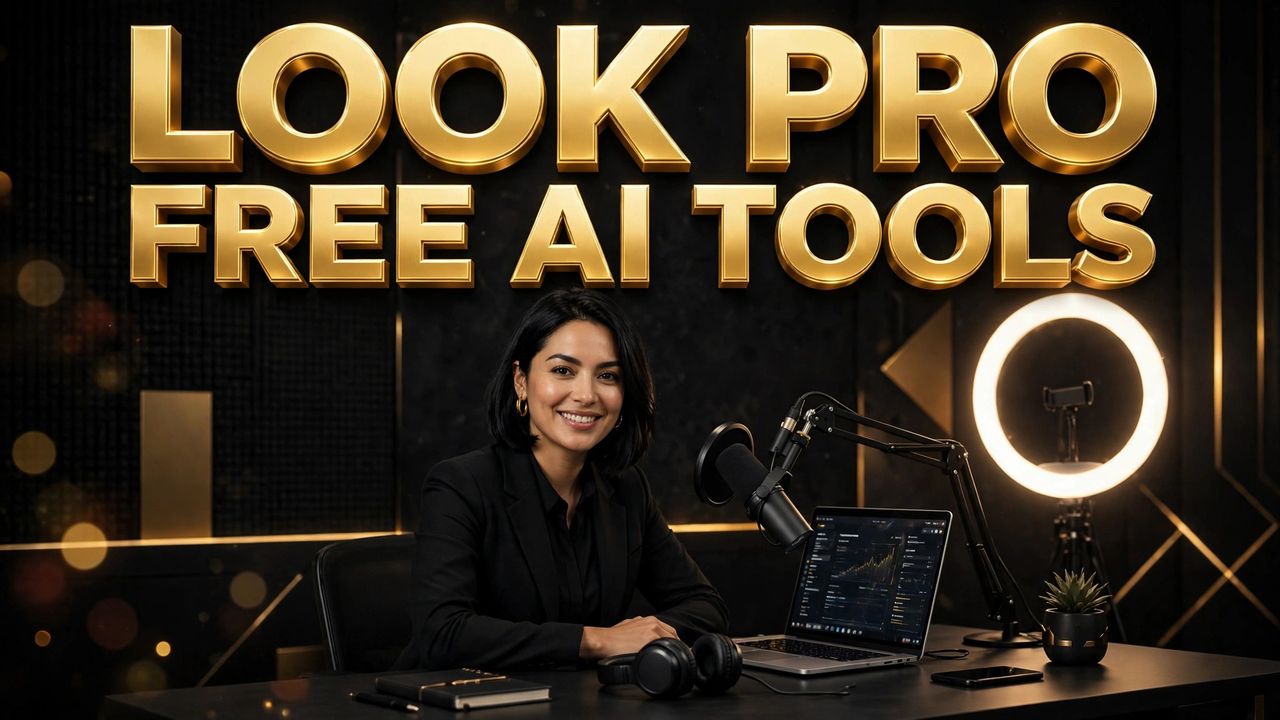
How to Look Professional for Free with AI Tools in 2026

Looking professional is not about expensive gear. In 2026 it is about a few smart choices made consistently: clean visuals, readable thumbnails, clear audio, and consistent colors. Free AI tools can handle almost all of that — if you use them with a system.
This guide shows where amateur content gives itself away, and the free AI fix for each one.
1. Fix the video first: light, framing and cleanup
The fastest upgrade is not a better camera. It is better light and a clean frame. Record facing a window or a soft light source, keep the camera slightly above eye level, and leave a little space above your head. Then let AI clean up the rest.
CapCut (free) handles the heavy lifting. Its free tools include auto captions, background noise reduction, one-click enhancement, and templates that keep pacing tight. Use noise reduction at a moderate level — pushing it to maximum makes voices sound robotic. Turn on auto captions and style them with a bold font, a dark stroke, and word-by-word animation for talking-head videos.
Adobe Express (free plan) removes backgrounds from short clips and photos without a green screen. That single feature makes a bedroom recording look like it was shot against a designed set. Export the cleaned clip, then finish the edit in CapCut.
2. Thumbnails that look designed, not decorated
Amateur thumbnails fail in three ways: too much text, low contrast, and no clear subject. Professional thumbnails do the opposite. One subject, three words maximum, high contrast, and empty space around the main element so the eye knows where to land.
Use Canva (free) for layout. Start from a YouTube thumbnail size of 1280 x 720, place your main visual on the right or left third, and put your three-word headline on the opposite side. Canva's free background remover and Magic Eraser trial credits help clean up product shots and faces before you place them.
For the main visual itself, Leonardo AI (free daily tokens) and Ideogram (free plan) are the strongest free options in 2026. Leonardo is good at cinematic scenes, product backgrounds and consistent characters. Ideogram handles text inside images far better than most generators, which matters when a short phrase must appear correctly on the image itself. Generate the visual, then build the final thumbnail in Canva — do not rely on the generator to do layout.
Test rule that costs nothing: shrink your finished thumbnail to the size of a postage stamp. If you cannot read the words and identify the subject instantly, simplify it.
3. Design and branding without a designer
Professional creators repeat the same colors, fonts and logo placement until the audience recognizes them at a glance. You can build that system free.
Canva (free) gives you a brand kit on the free plan: save your two or three brand colors, one headline font and one body font, then reuse them on every thumbnail, community post and channel banner. Consistency is what the audience reads as "professional," not complexity.
Microsoft Designer / Image Creator (free) generates supporting graphics, icons and social images from plain descriptions. Use it for the small assets that make posts look finished: section dividers, quote cards, and background textures in your brand colors.
Photopea (free) opens Photoshop files when you need finer control than Canva allows — useful for logo cleanup, transparent PNGs and precise resizing.
4. Audio that sounds expensive
Viewers forgive average video far faster than they forgive bad audio. Two free AI tools fix most audio problems.
CapCut's noise reduction and voice enhancer (free) removes fan noise, echo and hiss from phone recordings. ElevenLabs (free tier) provides a monthly character allowance for clean narration when your recorded take is unusable or when you run a faceless format. Write the script well, keep sentences short, and the free allowance covers several Shorts or one longer video per month depending on length.
For music, Suno (free tier) generates original background tracks in a chosen mood and tempo. Keep the volume low under speech — around 10 to 15 percent — so the track supports the video instead of competing with it. Save two or three tracks you like and reuse them; a repeated sound becomes part of your identity.
5. The professional workflow, step by step
Here is how this fits one video:
1. Plan the title and thumbnail idea before you record, so your footage and visual match. 2. Record with the best light you have; fix mistakes in CapCut with enhancement and noise reduction. 3. Generate the thumbnail visual in Leonardo or Ideogram, lay it out in Canva with three words and your brand colors. 4. Add auto captions in CapCut, one Suno background track at low volume, and a clean end frame with your logo and next-video title. 5. Export at 1080p or higher, check the thumbnail at small size, then publish.
What to skip
Avoid stacking five filters because a tool offers them. Avoid unchanged templates everyone in your niche already uses. And do not pay the moment a free tier feels limiting — first batch your work and save every output. Most creators hit free limits because they generate randomly.
Professional is a system, not a budget. Light, one clear subject, three words, clean audio, and the same colors every time — all free, all repeatable. Start with your next video.
Need help with your content?
I provide professional video editing, YouTube, Instagram and TikTok thumbnail design, AI content creation, UGC ads, social media growth support, and YouTube channel and complete brand packages.